
Automating your hiring process saves time, reduces manual effort, and ensures a consistent candidate experience. The Hiring Workflow setup allows users to automatically send email notifications to candidates when they reach specific workflow stages. Instead of manually sending messages, recruiters can use pre-defined recruiting email templates that trigger automatically. This article explains how hiring stage notifications work, how to set them up, and key considerations for managing them effectively.
Note:
This is Phase 1 information. Phase 2 is now available—refer to Workflow Automation: Hiring Team Notifications for details!
This is the first of several automated hiring stage notifications. Candidate text messages are part of Phase 3, stay tuned!
In this article:
Hiring Stage Notification Overview
Candidate Email Automation – Use Cases
Setting Up Automation
Considerations
Additional Resources
Hiring Stage Notification Overview
Hiring Stage Notifications are automated emails sent to candidates when they move into a particular workflow stage (for example, Interview Scheduled or Offer Extended). These notifications are tied to recruiting email templates and can be configured to send immediately or after a delay.
This automation helps:
- Maintain consistent communication with candidates.
- Reduce manual work for recruiters.
- Ensure timely updates at each stage of the hiring process.
Note
Automated emails default to the email address set on the email template. If no alias is defined, emails will be sent from the recruiter’s email.
Automated Email Actions
Automated emails are triggered when a candidate enters a specific workflow stage. Automated emails are based on workflow stages, not individual actions. If different actions move candidates into the same stage, they will trigger the same automated email.
Below are common stage-based use cases:
New Applicant stage
The following actions can place a candidate into the New Applicant stage:
- Manual candidate creation
- Manual candidate creation through resume upload
- Manual candidate creation by emailing the resume
- Referring a candidate
- Candidate applies from a job board
Example:
You configure an automated email on the New Applicant stage to send an application confirmation.
Whether the candidate applied from a job board or was manually created by a recruiter, the confirmation email is sent as soon as the candidate enters this stage.
Actions That Can Trigger Stage-Based Emails
The following actions include the option to change a candidate’s workflow stage. When the workflow stage changes, the automated email associated with that stage is triggered.
- Candidate profile stage update
- Send a manual email to the candidate
- Candidate profile disposition modal
- Move the candidate to another requisition
- Sharing a candidate
- Send the candidate to another requisition
- Schedule 1:1 interview
- Cancelling an interview
- Schedule with multiple interviewers
- Sending a reference check
- Move or decline from talent match
- Sending an offer letter
- Bulk reply to candidates
- Bulk sharing candidates
- Bulk propose 1:1 meeting
- Bulk moving forward to a new stage
- Bulk decline
- Bulk send candidates to another requisition
Candidate Email Automation – Use Cases
This section highlights high-value ways to automate candidate email communication. You can reduce manual recruiter work, send timely messages, and deliver a consistent, high-quality candidate experience throughout the hiring process.
Scenario 1: Simple Communication Automation (Stage‑Based Emails)
Use case
Recruiters want candidates to automatically receive an email when they reach a specific stage in the hiring process (Screening, Interview Scheduled, Disposition).
How it works
- Create an email template (Interview Invitation, Next Steps, Rejection Email). Creating and Editing Recruiting Email Templates.
-
Go to Workflow Setup. (Tools > Setup > Hiring Workflows)
- Select the relevant workflow stage.
- Attach the email template to that stage.
Outcome
Once a candidate is moved to that stage, the email is automatically sent without any manual action from the recruiter.
Value
- Saves recruiter time by removing repetitive tasks
- Ensures candidates receive timely updates
- Delivers consistent and approved messaging across the team
Scenario 2: New Applicant Stage Automation (Application Confirmation)
Use case
Customers want to automatically acknowledge candidates as soon as they apply, typically with a “Thank you for your application” email.
How it works
- Create a Thank You for Applying email template. Creating and Editing Recruiting Email Templates
- In Workflow Setup, select the New Applicant workflow stage.
-
Attach the email template to this stage.
-
Select “Immediately” as the sending time.
Outcome
Every new applicant automatically receives a confirmation email immediately after applying.
Value
- Reassures candidates that their application was received
- Sets a positive first impression
- Eliminates the need for manual follow‑up on new applications
Scenario 3: Automating the Second Step Application Email
Use case
Recruiters want to send candidates a link to complete a second step of the application without manually emailing each candidate and pasting the link
Current challenge (without automation)
- Recruiters must manually email candidates
- They need to add the second‑step application link
- This process is time‑consuming and error‑prone, especially at scale
How it works with automation
- Create two separate workflow stages: (Create and Manage Hiring Workflows)
- Application – Step 1
- Application – Step 2
- Create a new email template for Step 2. (Creating and Editing Recruiting Email Templates)
- In the email template, enable the option:
-
Include a link to applicant’s profile / next stage of application
-
- In Workflow Settings, attach this email template to the Application – Step 2 stage.
Outcome
When a recruiter moves a candidate from Application – Step 1 to Application – Step 2, the system automatically sends an email that includes the link to complete the second step of the application.
Value
- One simple action (stage change) triggers communication
- Eliminates manual emails and link handling
- Scales easily for high‑volume hiring
- Creates a smoother, more guided candidate experience
Setting Up Automation
Permissions
To access and create a notification automation, a user must have the HR Admin and Recruiter Permissions.
-
Navigate to Tools > Setup.
-
Click Hiring Workflows.
-
Click Workflow Setup.
-
Identify which workflow stage should have an automated candidate email notification. Click Actions and select Configure email notification from the dropdown.
- Configure your email notification.
- Determine if the notification should be sent immediately or after a delay. This delay can be in increments of days or hours.
-
Select the email template you want to use.
Note:
Email notifications cannot be manually edited when configuring the email; you must select from existing recruiting email templates. To edit or create a new email template, refer to: Creating and Editing Recruiting Email Templates.
-
Click Save Notification.
-
When done with all the notifications, click Save & Close.
Note:
If the candidate does not have an email address on file, the notification will not send.
Considerations
-
Updating Workflow Stage - Individual & Bulk: When you move a single candidate or bulk move multiple candidates into a workflow stage with an automated candidate email, you will be prompted to confirm the notification with details about when the message will be sent.
-
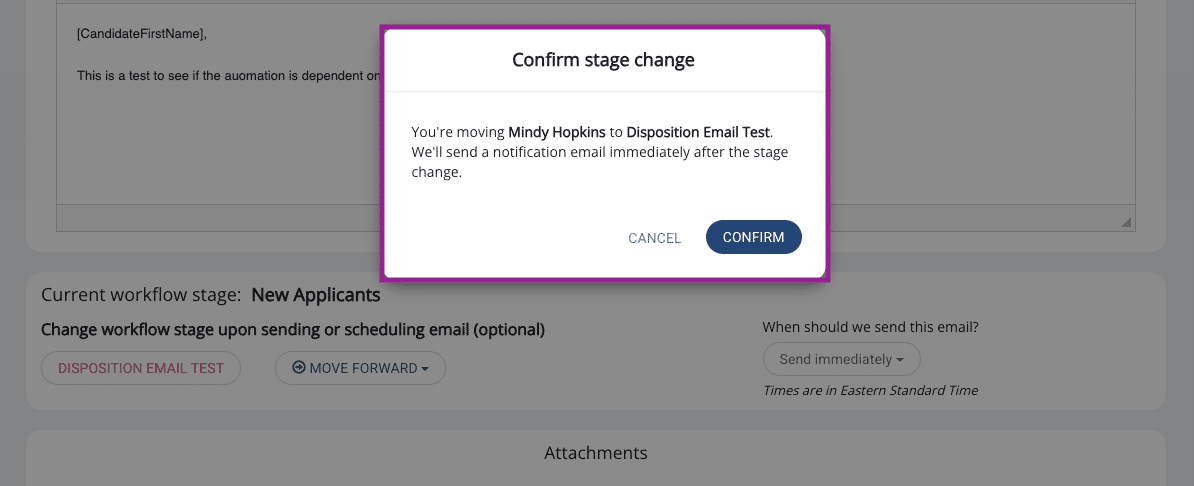
Email Candidate + Update Workflow Stage: If you update a Candidate's Workflow Stage when manually sending an email, you will be given a reminder of the automated notification. If you move a candidate when sending an email, they will receive both emails - you cannot suppress the automated notification.
-
Candidate Profile - Delayed Notification: When a candidate has a pending email via automated delayed notification, you will see a banner in the candidate profile alerting you to when the notification will be sent.
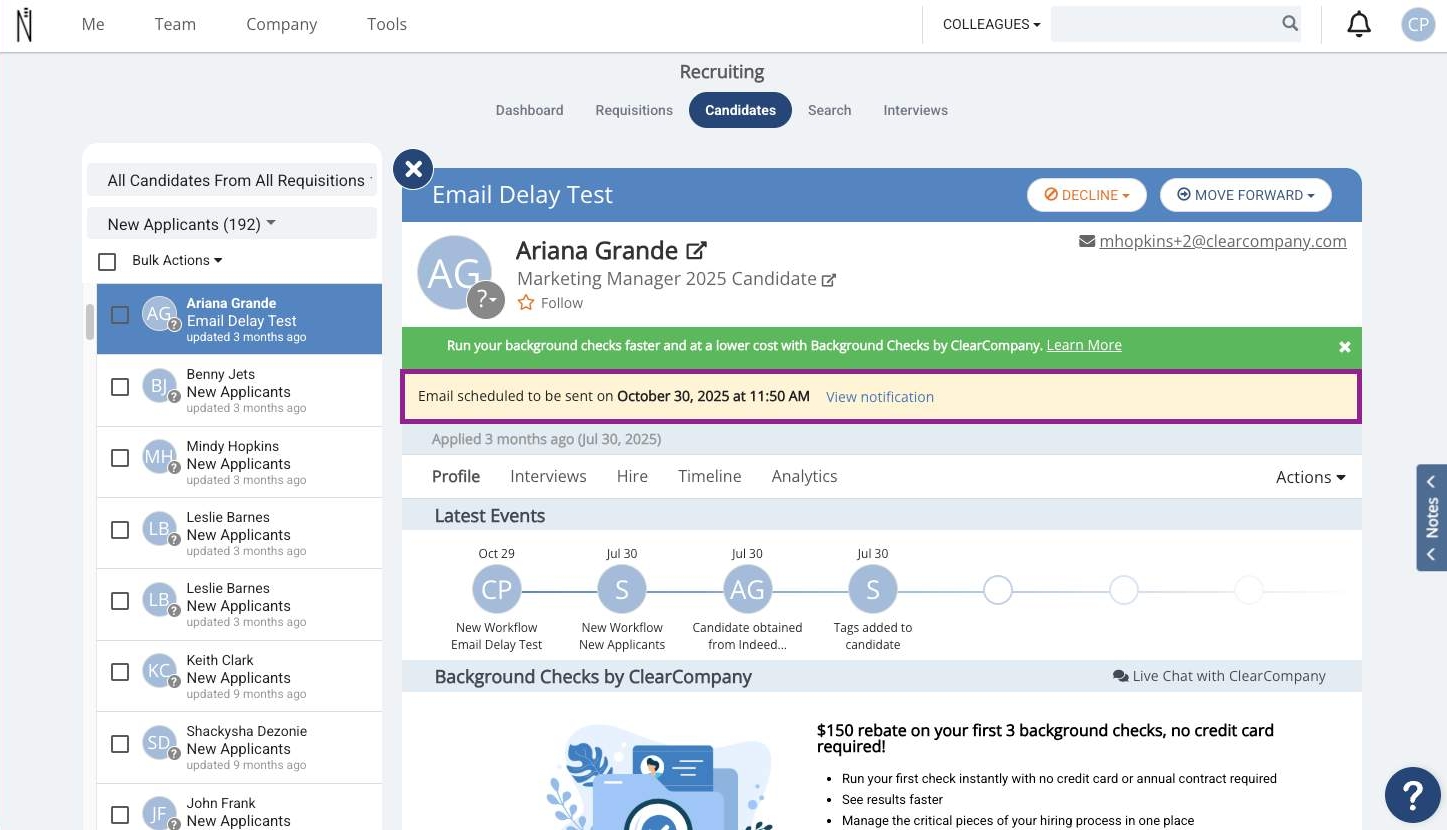
- If you move a candidate to a new stage before the notification has been sent, the new stage's automation (or lack thereof) will override the scheduled notification.
- Candidates can only have one scheduled notification at a time within the platform.
Additional Resources
Hiring Workflow Automation Settings
Create and Manage Hiring Workflows
Hiring Workflow Automation: Background Check and Assessment Test Supported Providers
Comments
Please sign in to leave a comment.